Batch Image Resizing: Save Hours of Work in Minutes
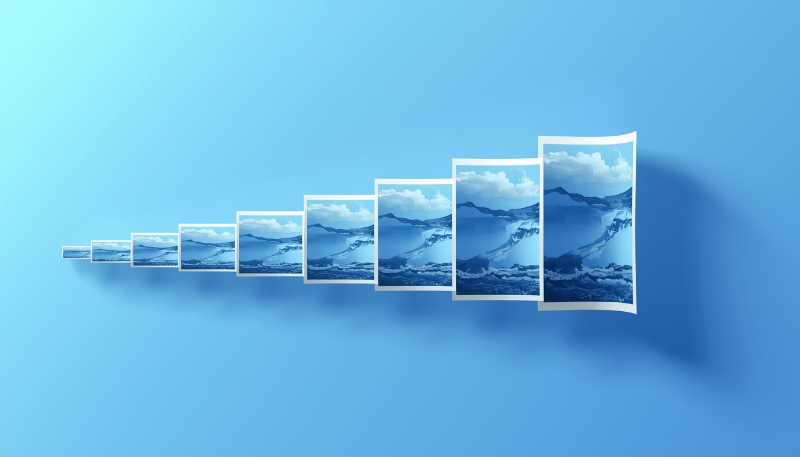
Let’s be honest. If you’re still resizing images one at a time, you’re wasting time you’ll never get back.
Whether you’re a photographer exporting a wedding shoot, a developer preparing images for a website, or a social media manager handling content for multiple platforms, doing it manually is painfully slow. And it doesn’t have to be.
That’s where batch image resizing comes in. Upload everything at once, set your size, and let the tool do the rest.
What is Batch Image Resizing?
It’s exactly what it sounds like. You resize a bunch of images at the same time instead of opening them one by one. You set the width, height, or scale once and every image in the batch gets resized to match.
Think of it like this. Instead of wrapping 100 gifts by hand, you’ve got a machine that does them all at once. Same result, a fraction of the time.
Why You Should Be Using It
-
It saves a lot of time. What takes 30 minutes by hand can take 10 seconds with batch processing. If you’re working with more than a few images, there’s no reason to do it the slow way.
-
Your images stay consistent. When you resize manually, it’s easy to end up with slightly different sizes or quality settings. Batch processing applies the same settings to everything, so your output is always uniform.
-
It’s really simple. Most batch tools (including ours) just need you to upload, pick your settings, and click a button. No special skills needed.
How to Batch Resize Images (Step by Step)
Here’s the typical process:
- Upload your images - Drag and drop or select multiple files at once
- Set your target size - Choose width, height, percentage, or a max dimension
- Pick your output format - JPEG, PNG, or WebP (WebP is great for websites)
- Adjust quality if needed - 80% is usually the sweet spot between size and clarity
- Process and download - Click resize, then download everything as a ZIP file
The whole thing takes seconds, even with dozens of images.
Tips for Getting the Best Results
-
Sort by orientation first. Landscape and portrait images have different shapes. Resizing them all to the same width can look odd if you mix them. Process them in separate batches for better results.
-
Preview before processing all. Before running 50 images, resize just one and check the output first. Make sure the quality and size look right before doing the full batch.
-
Always keep your originals. Never overwrite your source files. Work on copies, or use a tool that doesn’t touch the originals. Our tool runs everything in your browser, so nothing gets changed.
💡 Pro Tip
If you’re preparing images for a website, use WebP as your output format when batch resizing. It gives you much smaller file sizes compared to JPEG or PNG, with no visible quality loss. Your pages will load faster and your users will have a better experience.
FAQs
What is batch image resizing?
It means resizing multiple images at once using the same settings, instead of editing them one by one. You upload a group of images, set the size you want, and the tool handles all of them together.
Is batch resizing safe? Will I lose my originals?
With properly built tools, yes. Our Bulk Image Resizer processes everything in your browser and downloads the results as a separate ZIP file. Your original images are never changed or uploaded to any server.
Can I batch resize without losing quality?
Yes. Use reasonable quality settings (around 80%) and avoid making images bigger than their original size. If you’re only making images smaller, the quality loss is very minimal.
Conclusion
If you regularly work with more than a few images, batch resizing isn’t just nice to have. It’s essential. It saves time, keeps your output consistent, and takes the boring manual work out of the process. Once you try it, you’ll wonder why you ever did it the old way.
👉 Try our Bulk Image Resizer tool It works in your browser and keeps your images private.